SofaCode daemon
The small background process that bridges the app and VS Code. Python, cross-platform — Windows, macOS, Linux, and arm64 boards like a Raspberry Pi.
Get the daemon ⟩01 Documentation
SofaCode is a remote control for the coding agent already running on your computer — Claude Code, GitHub Copilot Chat or OpenAI Codex, inside VS Code. This page covers the whole thing: installing it, pairing a phone, every screen in the app, running it over the internet, the SofaNode, and the command line behind all of it.
Written against the shipping code. Where a feature is on one phone and not the other, it says so. Prefer to watch? The Guides walk through install, pairing, everyday use, and flashing a SofaNode on video — with the steps written out beside each one.
Nothing about SofaCode runs in a cloud we own. There is no accounts server and no relay in the middle — the phone talks to your computer directly.
Python 3.10+ on the computer, VS Code, and your own Claude Code, GitHub Copilot Chat or Codex subscription — SofaCode is the remote control, not the agent. The app needs Android 8.0+ or iOS 16+. On a television, Android 8.0+ with a D-pad remote; no camera and no microphone are needed, so pairing is by 8-digit code and you type with the remote.
One command on the computer, then one scan on the phone.
macOS and Linux:
curl -fsSL https://dl.codedatda.casa/sofacode/install.sh | bash
Windows, in PowerShell:
irm https://dl.codedatda.casa/sofacode/install.ps1 | iex
The installer sets up a Python virtualenv, puts sofacode on your PATH,
installs the SofaCode extension into every supported editor it finds — VS Code, and,
in beta, VS Code Insiders, VSCodium, Cursor, Devin Desktop and Antigravity — wires
Claude Code's hooks, opens ports 17845/tcp and 5353/udp on a firewall you are already running,
and registers it to start at login. Open a new terminal afterwards, then check it took:
sofacode --version
sofacode doctor
The extension is installed but a running window has not loaded it yet:
Ctrl+Shift+P → Reload Window. The installer only reaches an editor whose command is
on your PATH, so if your editor was missed — a fork like Cursor or Antigravity often is —
run Ctrl+Shift+P → Shell Command: Install '<editor>' command in PATH (that's
code, cursor, codium, and so on) and re-run the
installer.
Install the app first — out now on Google Play (Android 8.0+), and on the App Store (iOS 16+). A pairing window opens by itself the first time. To bring it back at any point:
sofacode pair
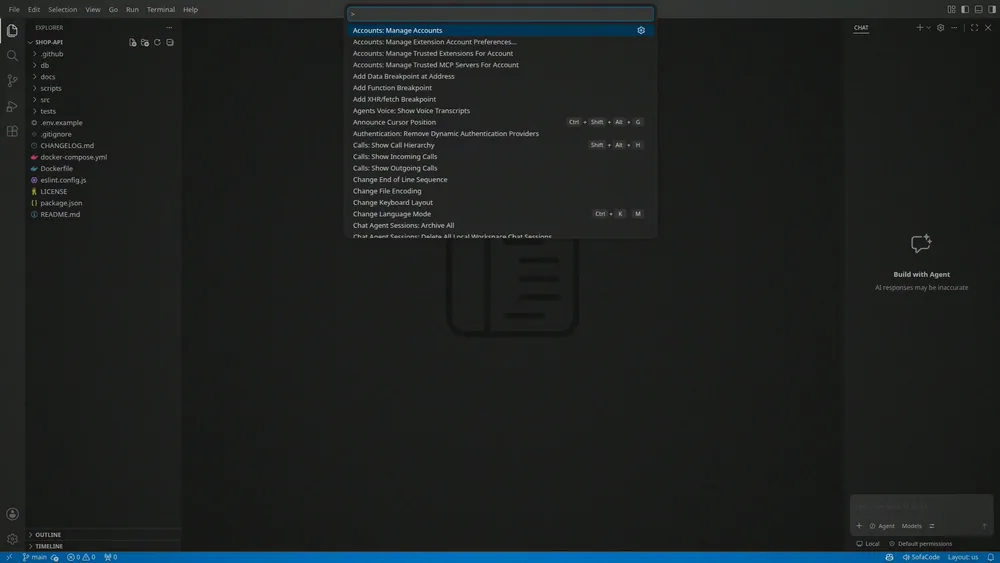
That prints a QR code and a numeric code in the terminal and opens the same thing in a
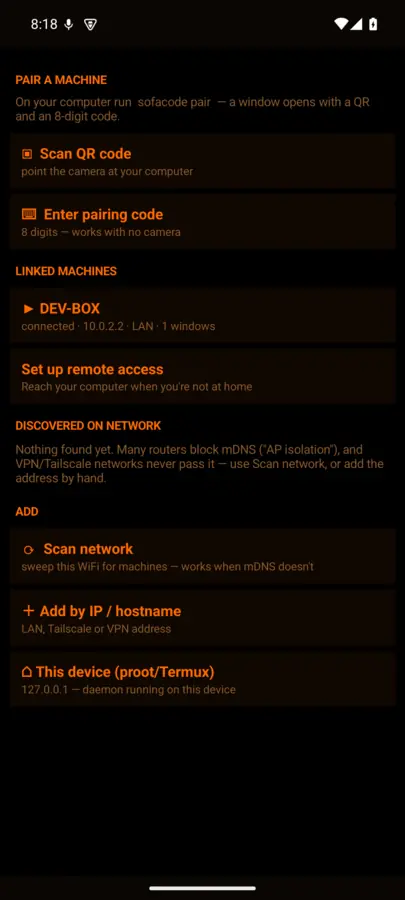
browser at http://127.0.0.1:17846/pair. In the app: Machines → Scan QR
code, or Enter pairing code if the phone has no camera. Scanning it with the
phone's own camera app works too — the link is a sofacode://pair deep link.
Every device gets its own token, revocable on its own.
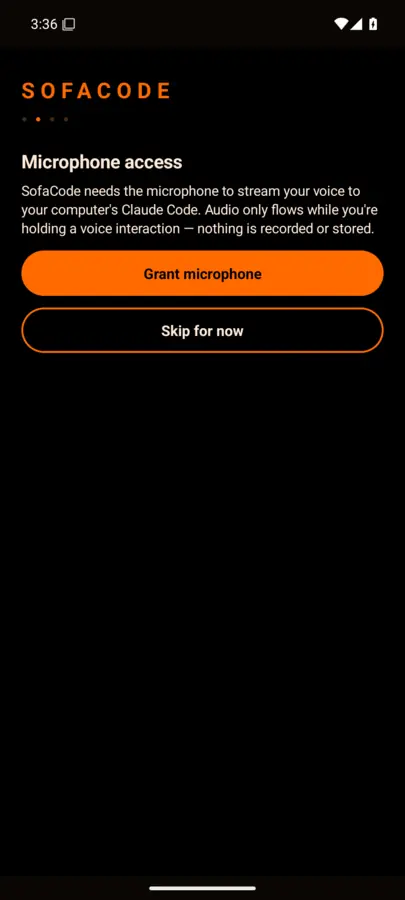
Push-to-talk needs it. The setup guide asks on first run; you can re-run it any time from Settings → Help → Setup guide.
Pair as many machines as you like and as many devices as you like — two phones to one computer, or one phone to several computers. Trust is keyed to the machine's identity, not its IP address, so a new DHCP lease or a router reboot changes nothing.
On an Android TV Android the 8-digit code is the only pairing route, and the app does not offer a Scan QR button there — a TV has no camera. Open Machines → Add machine → Enter pairing code, then type the 8 digits from the pairing window with the remote. Most televisions have no microphone either, so the microphone step is skipped and you type rather than dictate.

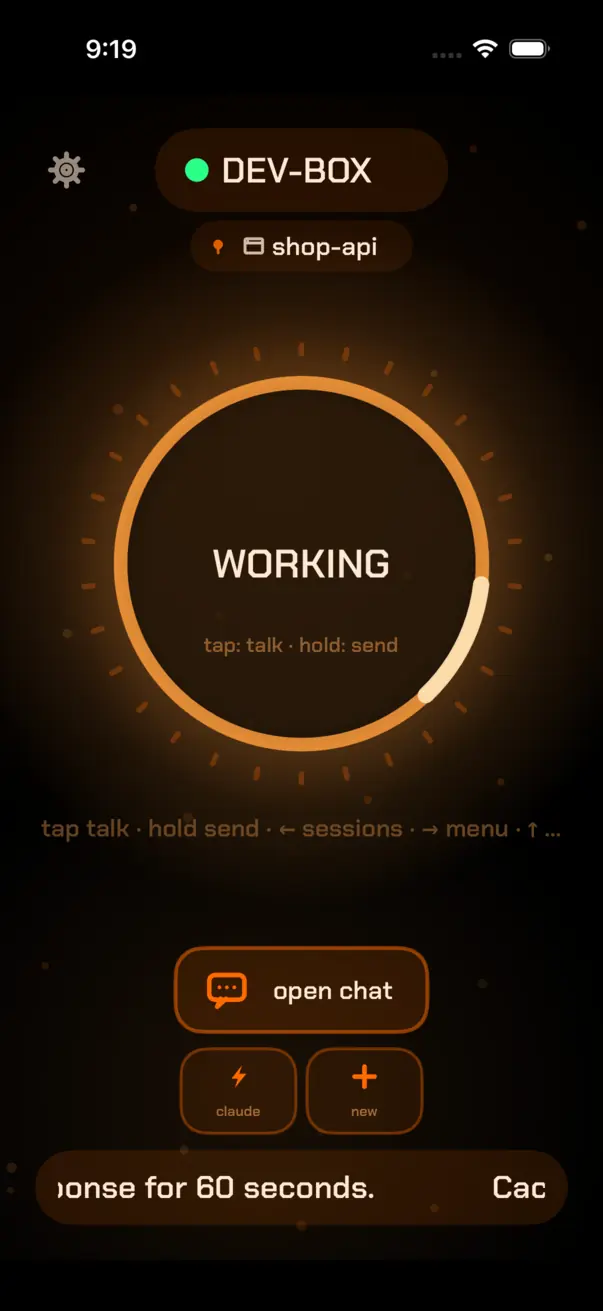
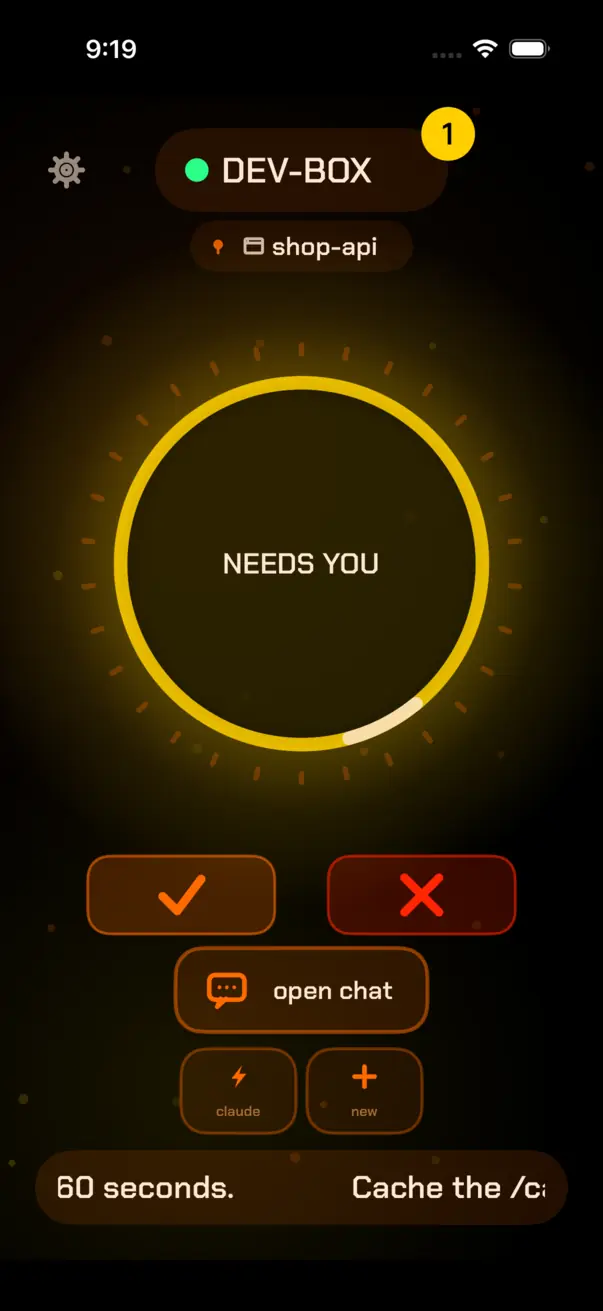
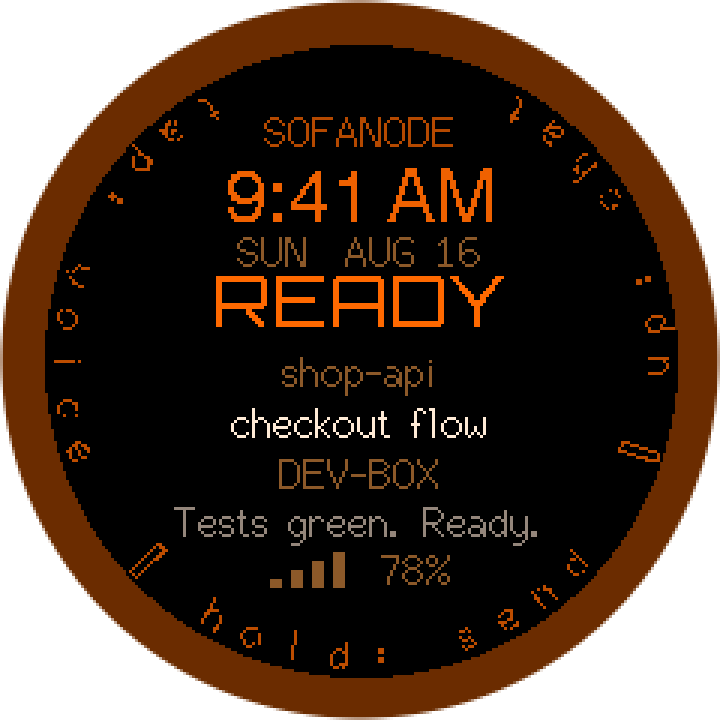
The home screen. A state ring you can read across a room, and everything else arranged around it. It is one drawn canvas rather than a stack of widgets, so it reflows the same way from a tablet down to a two-inch screen.
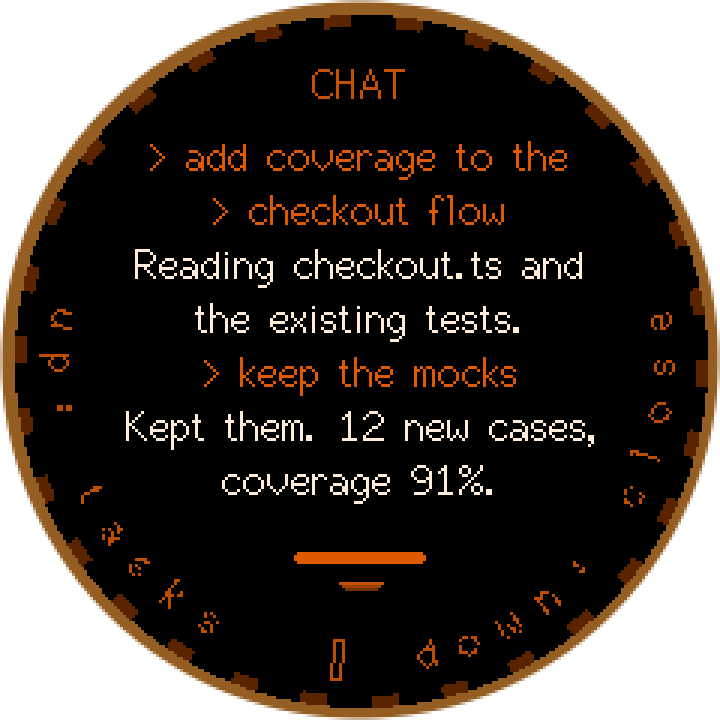
Node mode Android strips the deck to ring, state, machine and chat, and turns the outer edge into a rim dial that scrubs sessions. It switches itself on for watch-class screens; Settings → Node → Node mode overrides either way.
On an Android TV Android the deck opens in the same landscape layout a phone gets on its side: the session rail down one edge, the ring in the middle, the reading bands beside it. Because the deck is one drawn canvas rather than a stack of widgets, there is nothing for a remote to tab through — so the D-pad moves a focus ring between exactly the controls a finger would tap, and drawing that ring is the only thing the TV adds. OK presses the focused control, holding OK is the long-press (submit, or a row's actions), and Back steps out of whatever the last press opened.
Two things a television does not have, and the app does not pretend otherwise: no microphone, so the ring reads TAP TO TYPE and there is no dictation — talk to the same session from your phone instead; and no browser worth opening, so a link shows you the address to type somewhere else rather than launching one.
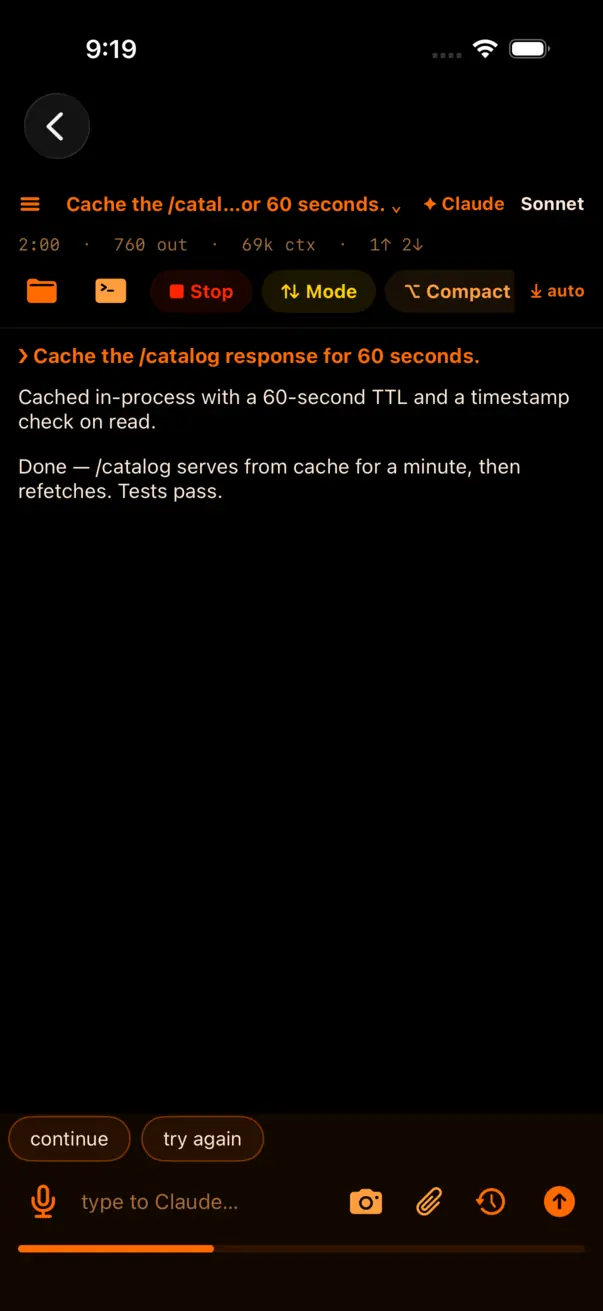
The running session, live. Code blocks render properly, the agent's task list ticks off as it goes, and its thinking is there if you want it.
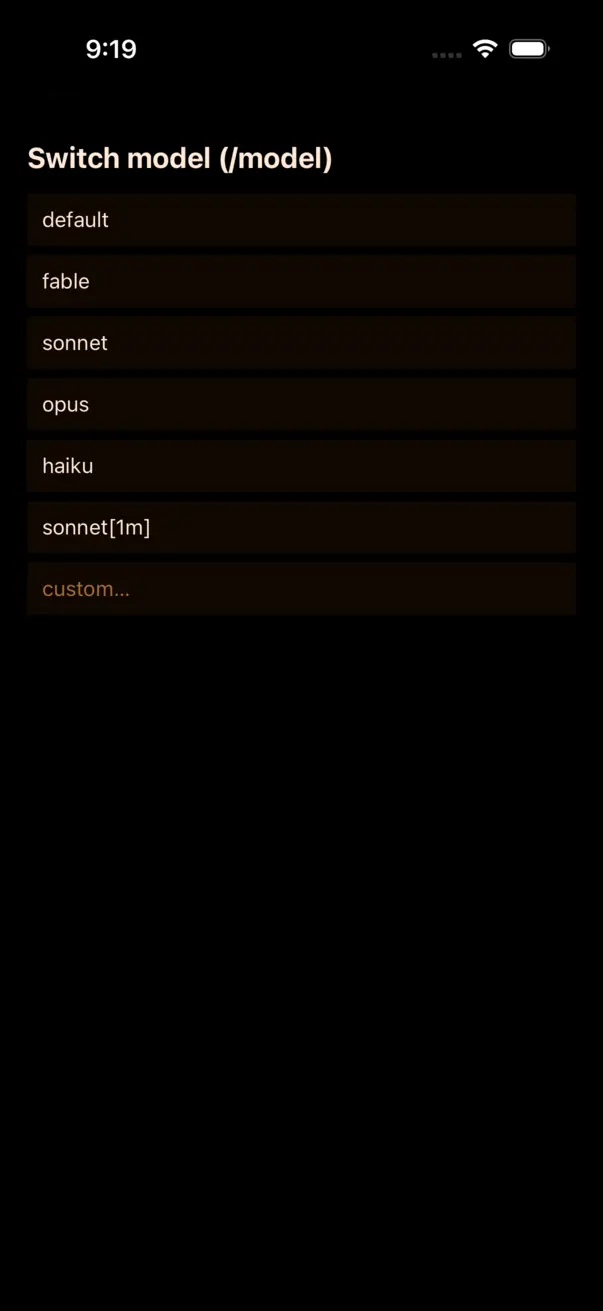
For Copilot the picker lists the models VS Code actually offers on that machine and
switches with a real command. For Claude Code it types /model <name>
at the session, because that is the only lever Claude Code exposes. For Codex the
picker lists its models and sets the default it uses for new sessions.
Models from your own hardware — LM Studio, Ollama, any OpenAI-compatible server — land in the same Copilot list once you turn on Local LLM (beta) in the extension. The full guide covers each server from install to first reply.
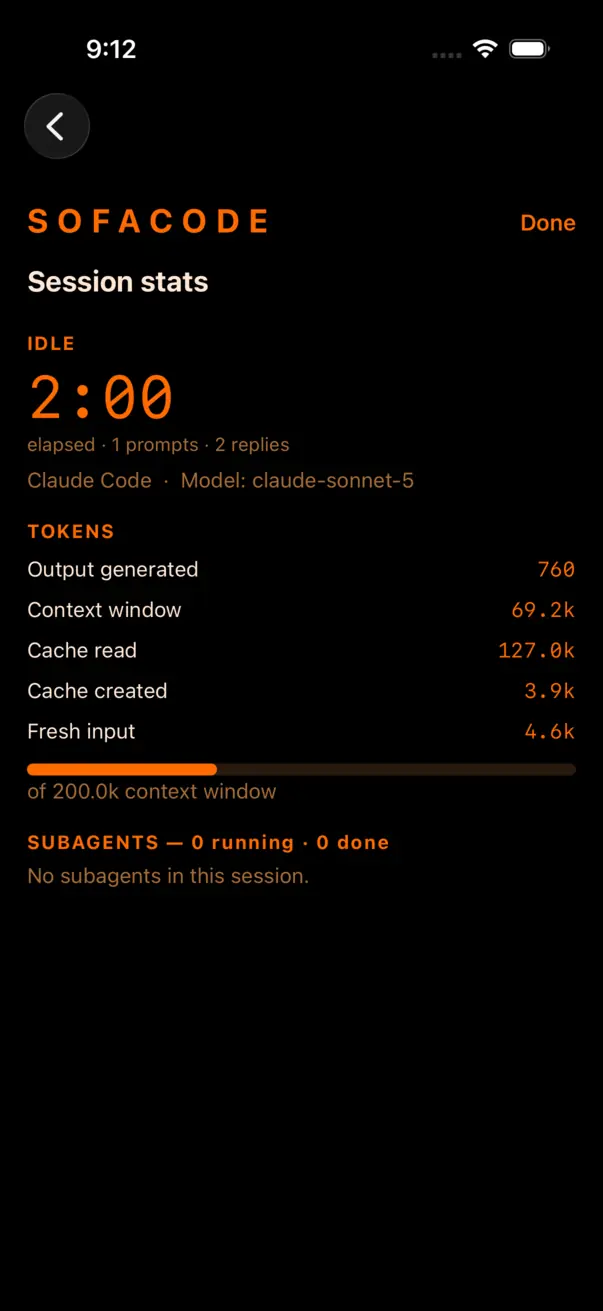
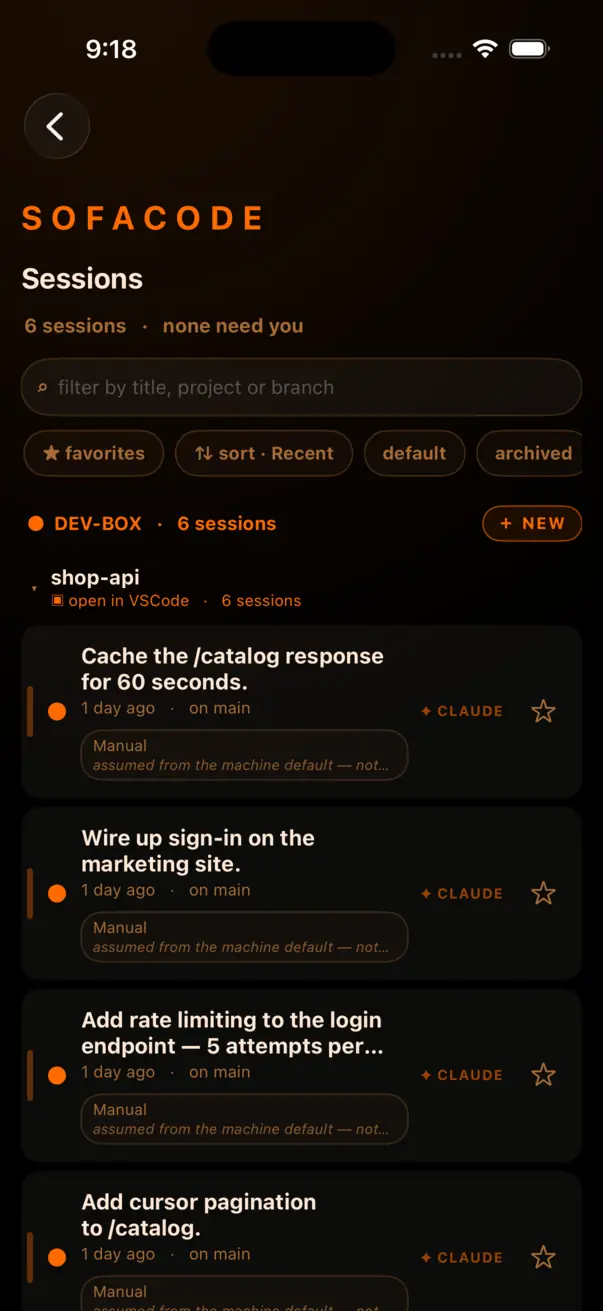
Every session on every paired computer, in one tree: machine, then folder, then session. Sort by recent, by what needs you, or by name. Search does not persist between visits; your sort and your collapsed folders do.
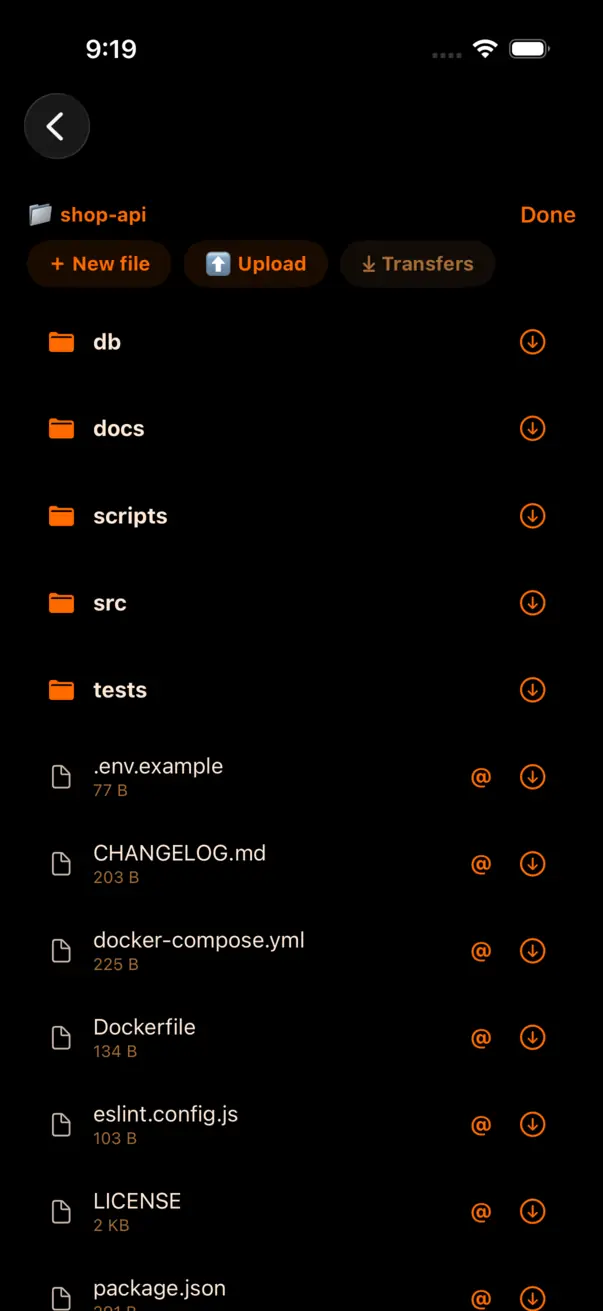
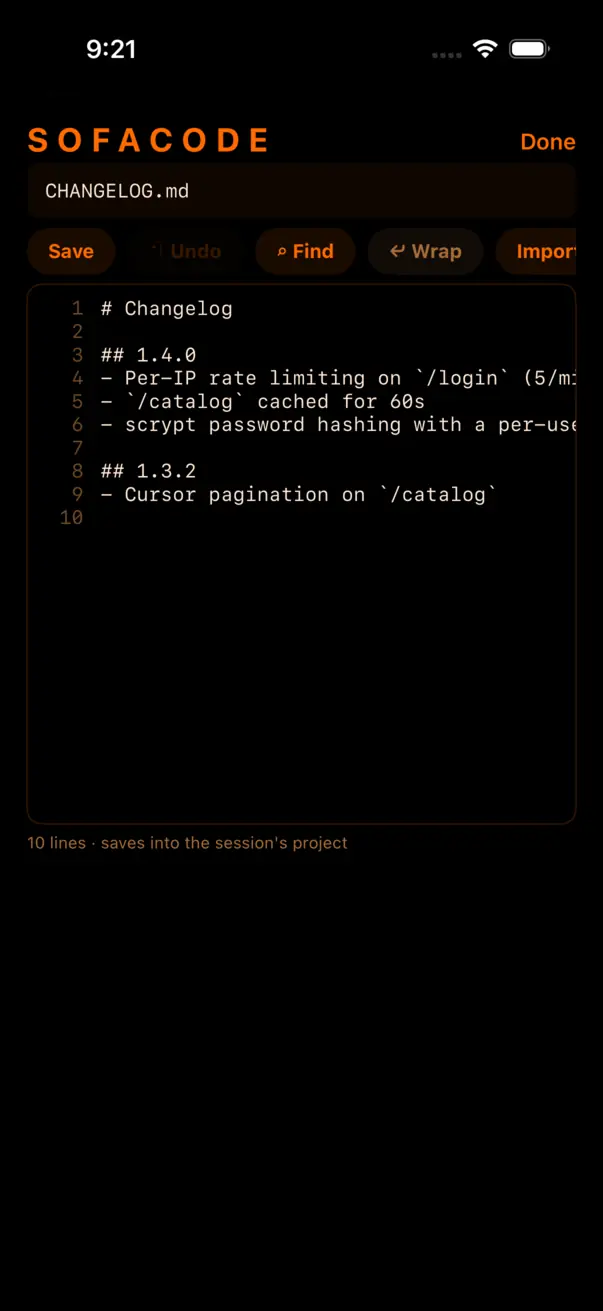
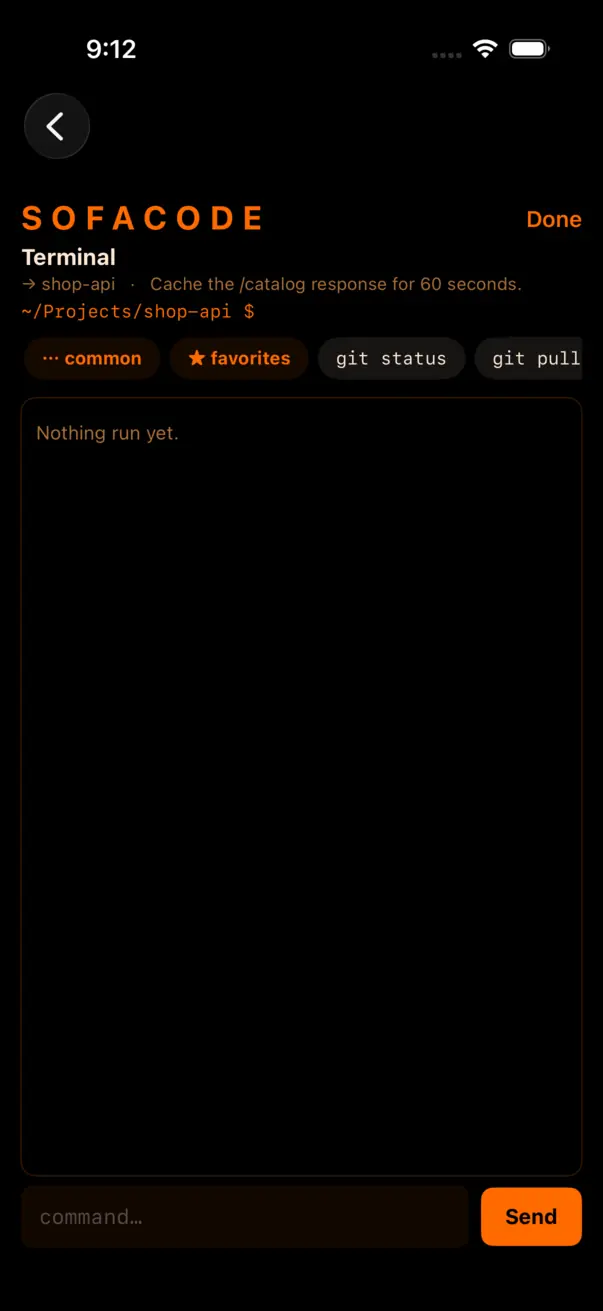
Both are confined to the session's project root by the daemon, not by the app —
.. and symlink escapes are refused on the computer's side.
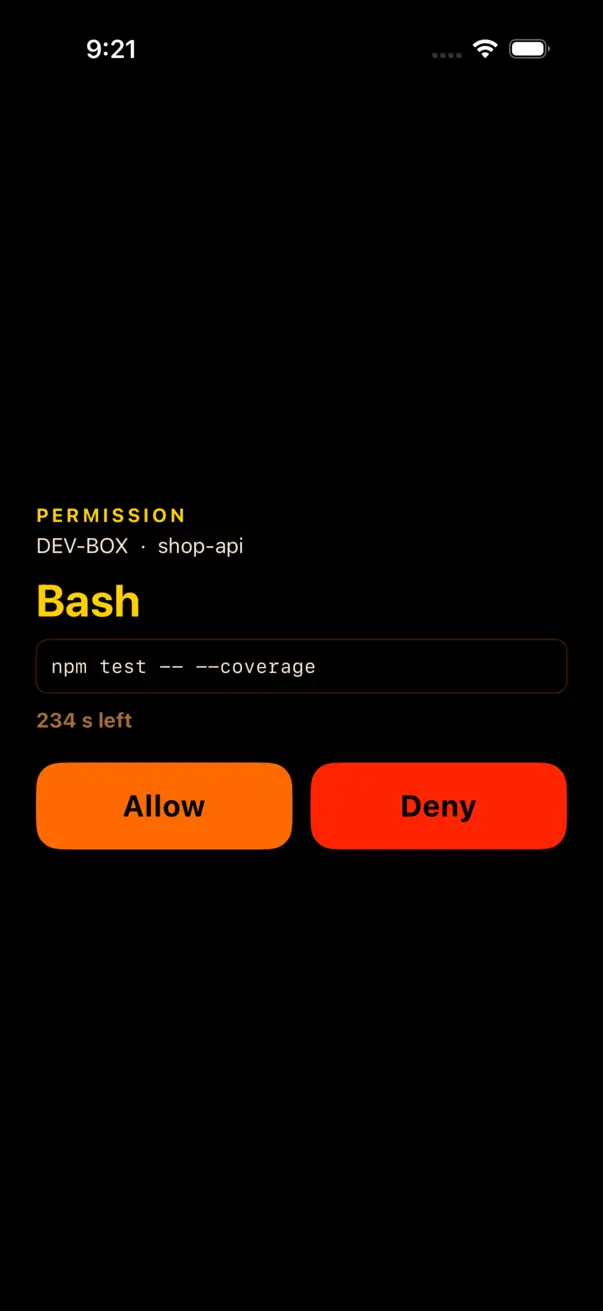
When the agent asks to run something, Claude Code blocks and the daemon holds the question open until somebody answers it. The answer can come from the phone, the SofaNode, or the computer — first answer wins, and the others are told it was already decided.
The full-screen card names the machine, the folder, the tool and the exact command, with a countdown. Nothing is auto-approved: if no device answers before the timeout, the request is denied.
Settings → Permissions is the only place a machine's default can be set to a mode that stops asking, and it applies to new sessions only — nothing can push a running session into another mode from outside. When a machine is in bypass, the approvals screen says so plainly instead of just looking empty.
On your own network, nothing is exposed to the internet at all. Remote access is the opt-in that lets the same app reach the same computer from anywhere: a coffee shop, a hotel, a phone on mobile data. It is off until you turn it on, and it is turned on from the computer's command line — a paired phone deliberately cannot enable it.
Remote access exposes, over the internet, the ability to type into your editor, run commands,
read and change your files and approve what an AI agent asks to do — remote code execution by
design. Attacks on exposed endpoints are increasingly automated and AI-driven; SofaCode's
protections reduce the exposure and nothing eliminates it. We accept no liability for use
of SofaCode beyond your own local network (Terms of Use, section
4). So it asks twice: sofacode remote start shows the warning and waits for you
to type I ACCEPT (once per Terms version; --accept-risk for scripts), and
each phone, tablet, TV and watch keeps to your own network until it has accepted the same warning
— in the remote-access wizard, or when the deck offers it because a paired machine has remote
access on. A SofaNode set up from a phone that has not accepted is provisioned LAN-only.
Exactly two routes: the device socket and the gateway relay. Pairing, the local
API, /status, /config and file transfers live on a different listener
that is not published at all, so a forwarded port cannot expose them even by accident.
Pair on your own network first, once, per device. A pairing request arriving from outside is refused, and there is no setting to loosen that. It also means you cannot finish setup while you are already away — do it before you travel.
If the phone is already paired, this is done.
sofacode pair
Print the walkthrough with the details for your machine at any time:
sofacode remote setup
A Cloudflare tunnel is the usual answer: nothing to forward, nothing to open on the
router, and the certificate is a real one. Install cloudflared, then either
take the throwaway hostname:
sofacode remote start
# prints the risk warning; type I ACCEPT to continue (once per Terms version)
…or use a named tunnel you own, so the hostname survives a restart:
sofacode remote token <TUNNEL_TOKEN>
sofacode config --set remote.hostname=sofa.example.com
sofacode remote start
Or forward a port yourself and let the daemon serve TLS from a certificate it generates once. The app is given that certificate's fingerprint over your own network and refuses anything else afterwards:
sofacode config --set remote.mode=direct
sofacode config --set remote.hostname=sofa.example.com
sofacode remote start
Then forward TCP 17847 to that machine.
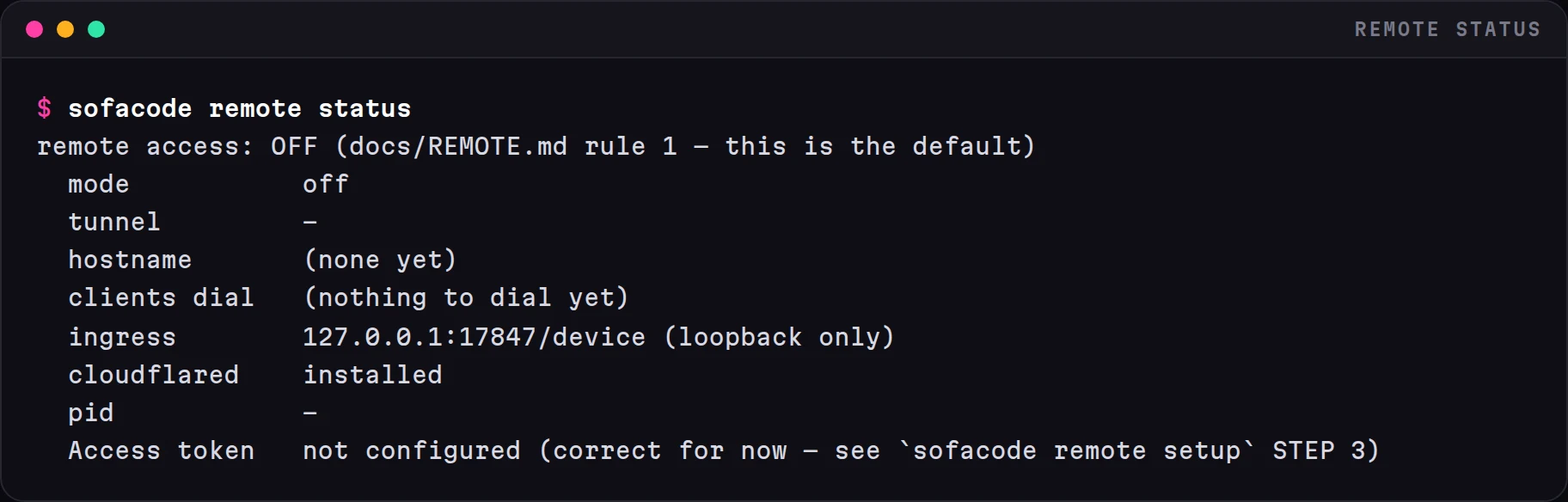
sofacode remote status
It prints the address clients will dial, the certificate fingerprint in direct mode, and — when the tunnel is not running — the last error and the last few lines cloudflared printed.
The moment remote access comes up, the address is pushed to every device that is already paired, over the connection it already has. A phone or a SofaNode paired months ago simply learns the way in. Away from home it tries the local addresses first and falls back to the remote one.
Use sofacode remote token for a tunnel token. Setting it through
sofacode config --set remote.tunnel_token=… works until the next restart and then
silently drops you back to a throwaway hostname — secrets are kept out of the config file on
purpose, and only the dedicated command writes them where they survive.
Do not add a Cloudflare Access service token yet. The config keys exist, but no SofaCode client sends those headers — putting Access in front of the tunnel locks out your own phone.
If you have several computers, you do not need a tunnel for each. Turn one of them into a gateway and the others are reachable through it:
sofacode remote gateway on
# then restart the daemon — it reads this at startup
A device still authenticates to the machine it is actually talking to; the gateway only carries bytes. Android + SofaNode — the iOS app has no relay path yet, so an iPhone needs a direct address for each machine.
sofacode paired revoke.sofacode remote stop
sofacode remote status
The tunnel is terminated and the listener goes back to loopback only. Status will say it is disabled — the mode you chose is remembered for next time, but nothing is listening.
The optional round-screen desk device. It is not required — the app is the full product — and it runs on the same SofaCode subscription. Buying one includes 3 months free: a 3-month subscription code for Google Play or the App Store arrives with your order confirmation. The product page has the full story; this is how to drive it.
Only the session the Node is following is read aloud as it arrives — a dozen agents talking over each other is not a feature. When one of the others stops, it holds its last reply and raises a pip on the SESSIONS screen.
Turn the voice off and the pips go with it; they are an offer to play something. A tap during playback stops it, the way you would interrupt a person.

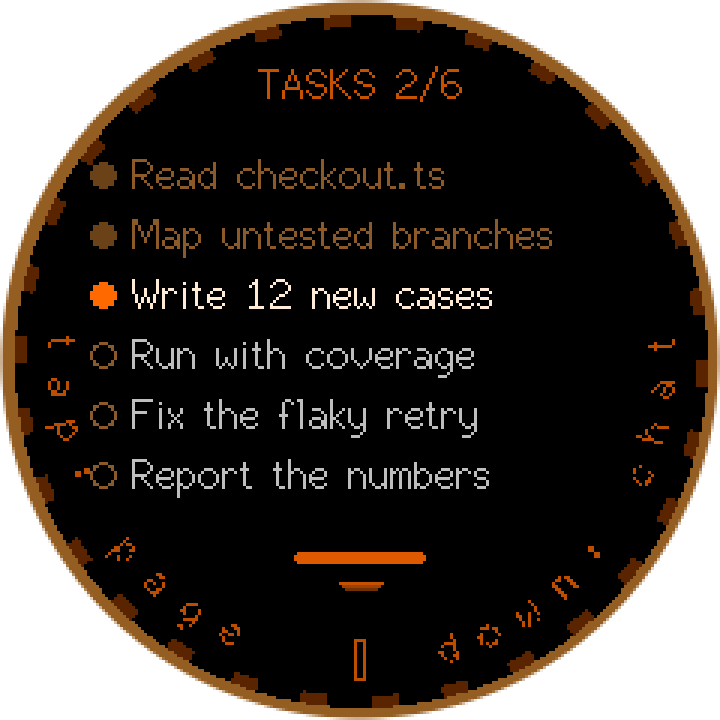
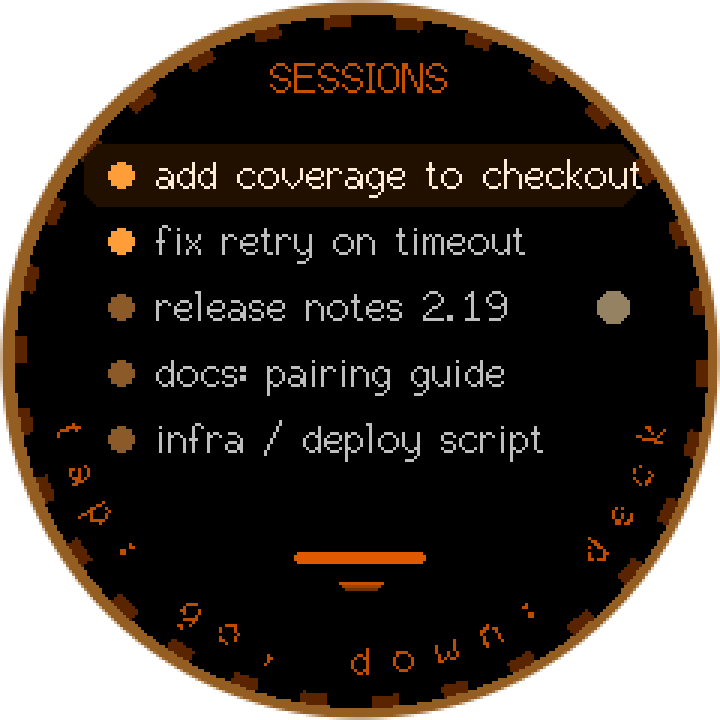
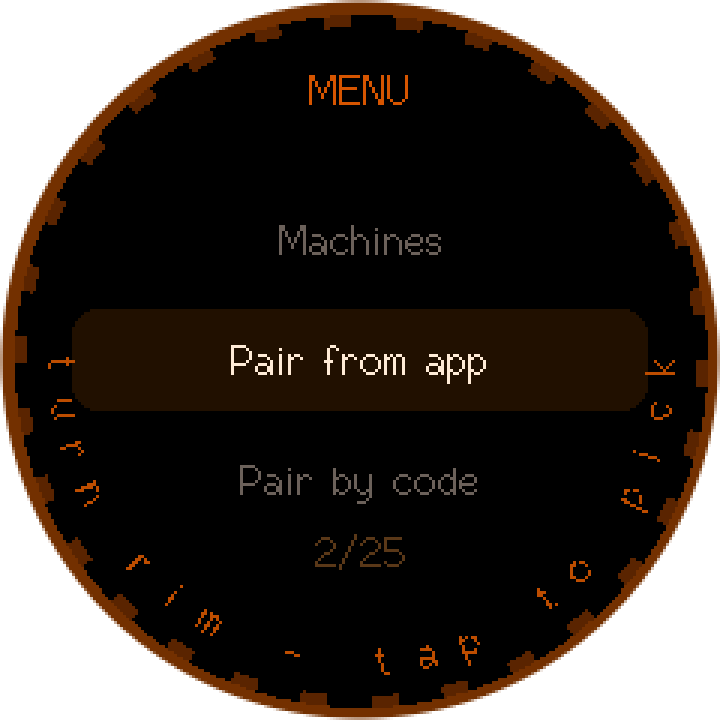
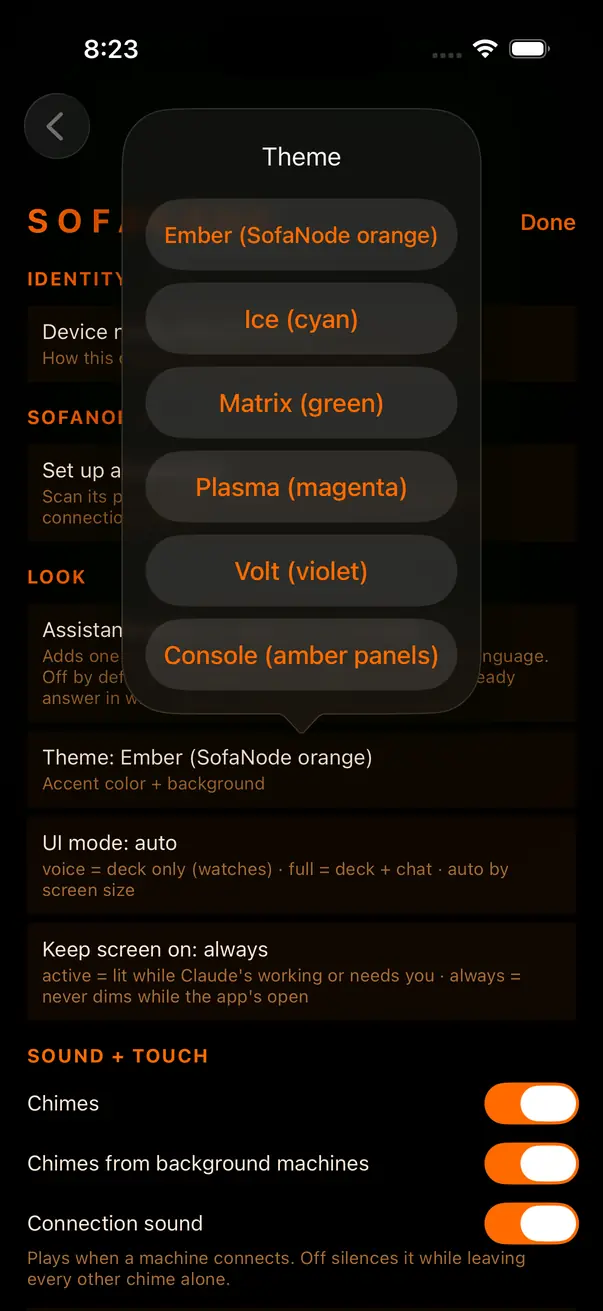
Whole sections are hidden rather than grayed out when nothing you have paired supports them, so the list is only ever as long as it is useful.
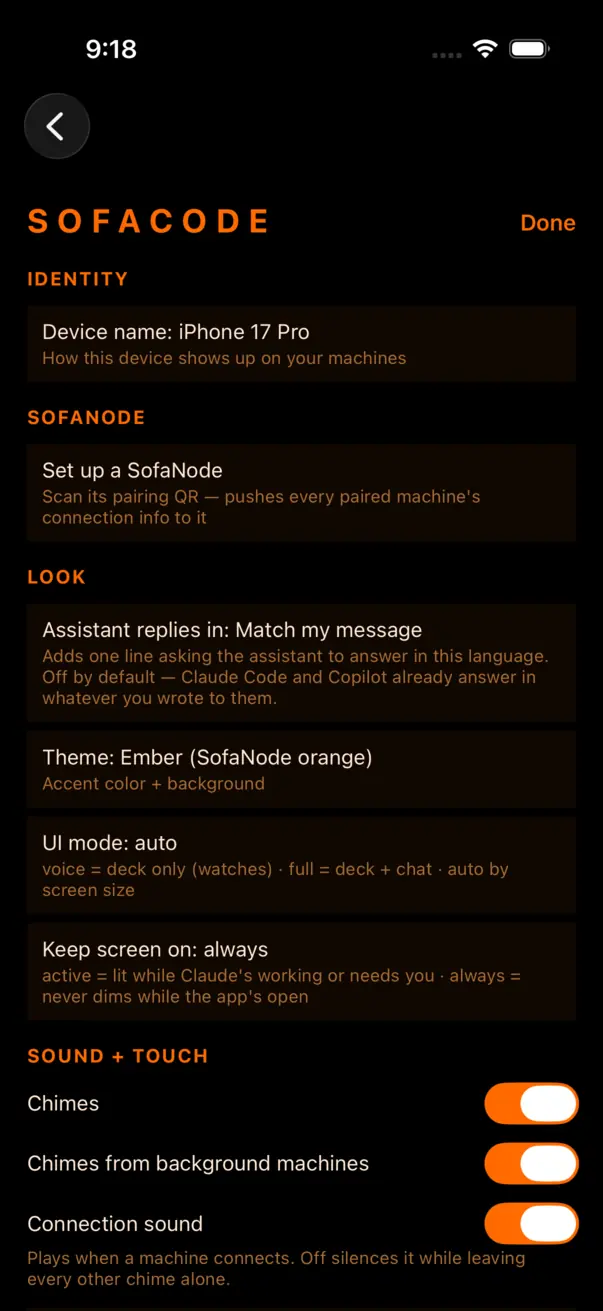
Everything the app does is available on the computer too, and a few things are only available there.
setup,
start, stop, status, token,
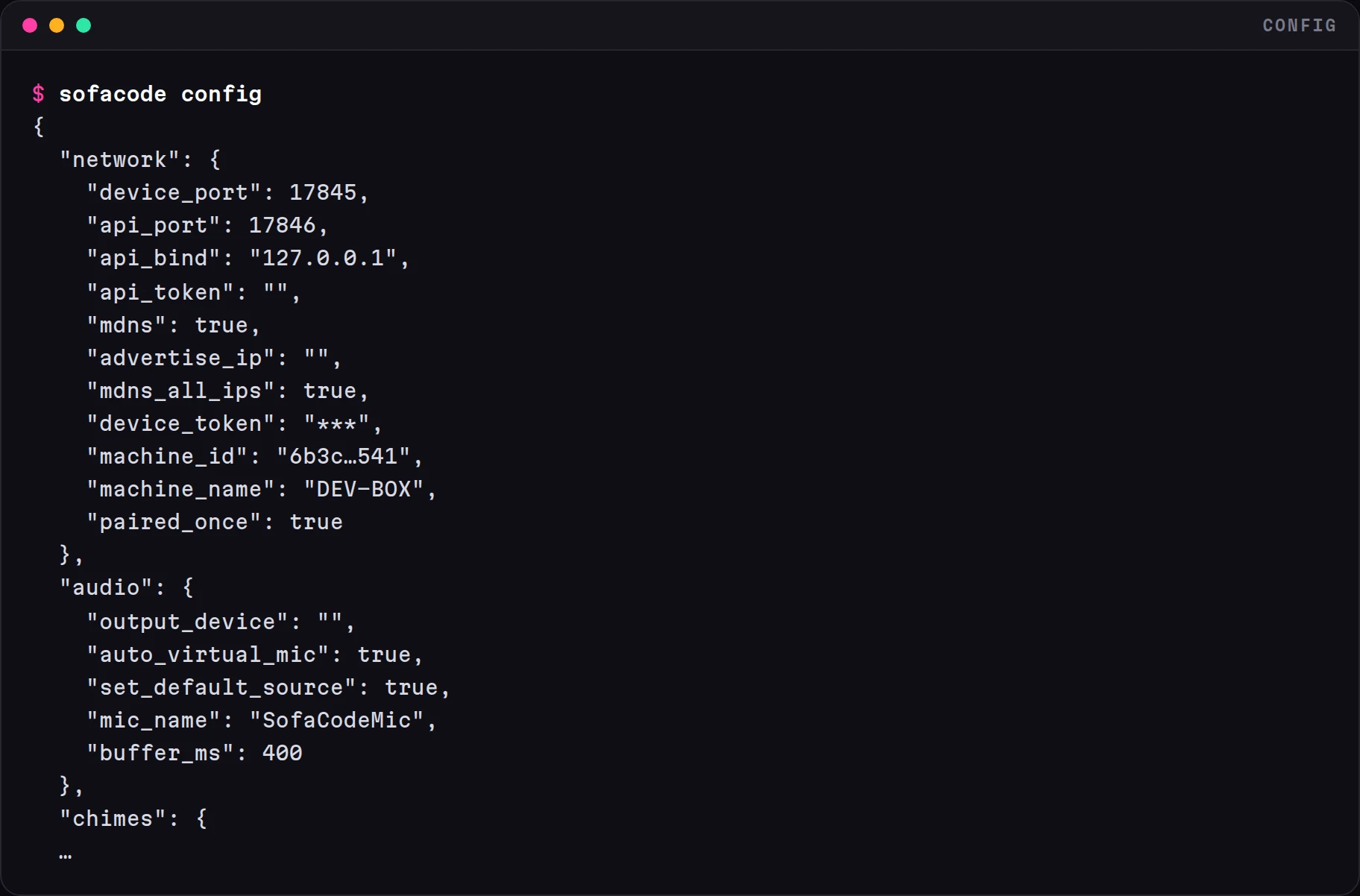
gateway. See 08.--set section.key=value to change one thing, no arguments to print it all.
A secret (a tunnel token) is routed to the credentials sidecar automatically.uninstall-hooks to remove them). They are merged into your existing
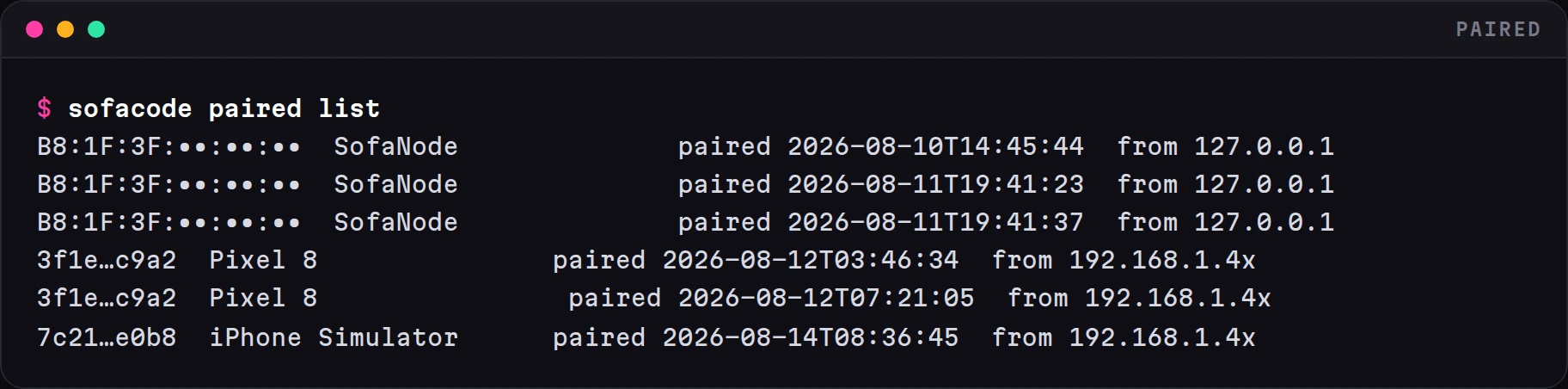
settings, which are backed up first.~/.config/sofacode/config.toml
— secrets are kept in a separate file with tighter permissions, never in here.~/.config/sofacode/paired.json~/.sofacode/ (Windows:
%LOCALAPPDATA%\SofaCode)Most config sections can be read and written from the app. Remote access and voice cannot — remote because turning on internet access should need a hand on the computer, and voice because the SofaNode's own menu owns it.

Run sofacode doctor on the computer — it checks the ports, the extension and
the hooks, and prints the fix for whatever it finds. If discovery is the problem (some
networks block mDNS), use Machines → Add by IP with the address
sofacode pair printed.
That is the extension. Reload the window (Ctrl+Shift+P → Reload Window) and check the window appears in the app's window picker. A window that is not listed has no extension loaded.
Almost always a tunnel token set the wrong way. Use sofacode remote token
<TOKEN> rather than config --set, then
sofacode remote start. Confirm with sofacode remote status, which
names the hostname clients will actually dial.
Correct, and deliberate — pairing is refused over the internet and there is no setting to change that. Pair on your own network before you travel.
It cannot reach any address it knows for the machine. Check the daemon is running, and re-run Settings → Node → Set up a SofaNode to push a fresh list of addresses — that is also how it learns a remote address after you have turned remote access on.
Speech is synthesized on the computer, so the computer needs a synthesizer installed —
piper-tts or espeak-ng. Without one the Node stays silent rather
than erroring, and the unheard-reply pips do not appear at all. Check the voice switch in
the Node's own menu too.
No. The phone talks directly to the daemon on your own machine. There is no server of ours in the loop — there isn't one. With remote access on, the traffic goes through an encrypted tunnel you own to the same daemon.
Still stuck? Report
it — the form asks for the versions, the steps and a screenshot, and if a SofaNode is
involved it opens a second set of questions about the device itself. Include what
sofacode doctor printed and it will be a much shorter conversation. Prefer to just
talk? Get in touch.
Nothing broken, but it does not do the thing you need? Ask for it — the apps, the watches, the desktop side and the SofaNode hardware all take requests through the same form.
The only thing you install by hand is the computer half, and the one-line installer in Install & pair does it for you. These direct downloads are here for air-gapped machines, custom setups, and the curious.
The small background process that bridges the app and VS Code. Python, cross-platform — Windows, macOS, Linux, and arm64 boards like a Raspberry Pi.
Get the daemon ⟩Streams the live session, terminal output and window info back to the daemon. The daemon installer drops it into every supported editor it finds — VS Code, and, in beta, Insiders, VSCodium, Cursor, Devin Desktop and Antigravity — or grab the .vsix to sideload.
Get the extension ⟩